


QuickBooks Error 324: Expert Fix for Banking Connection Issues

QuickBooks Error 324 can appear when QuickBooks can no longer locate a bank or credit-card account that was previously connected for online banking. When the connection breaks, new transactions may stop downloading, leaving the banking feed out of sync with your financial records.
The good news is that Error 324 is usually a banking-connection problem rather than a sign that your QuickBooks company data has been erased. The right solution depends on why the connection stopped working.
This comprehensive guide explains what QuickBooks Error 324 means, why it happens, how to fix it step by step, how it differs from other banking errors, and how to prevent recurring connection problems.
Important: QuickBooks menus and banking connection screens can vary by product, subscription, bank, and software version. Use the closest matching option displayed in your QuickBooks account.
QuickBooks Error 324: Quick Answer
QuickBooks Error 324 means QuickBooks cannot find the bank or credit-card account associated with an existing online banking connection.
It can happen when:
-
A bank account or credit card has been replaced or renumbered.
-
The financial institution changed its online banking system.
-
The account was closed or converted.
-
The bank changed its connection or security requirements.
-
QuickBooks is still associated with an older banking connection.
-
Duplicate or incorrectly mapped accounts exist in the Chart of Accounts.
-
The bank connection requires renewed authorization.
-
An outdated QuickBooks Desktop installation is interfering with banking functionality.
The safest approach is to try the built-in connection repair option first. If that does not work, reconnect the financial institution carefully and map the connection to the correct existing QuickBooks account.
What Is QuickBooks Error 324?
QuickBooks Error 324 is associated with a failed or broken connection between QuickBooks and a financial institution.
You may see wording similar to:
Error 324: We can't find this account at your bank.
The exact message can vary.
The important point is that QuickBooks is having trouble locating the account through the bank connection. This does not automatically mean that transactions already recorded in your QuickBooks company file have disappeared.
There are two separate things to understand:
-
Bank-feed connection: Used to download or import transactions from your financial institution.
-
QuickBooks account register: Contains transactions that have already been recorded in the company file.
Disconnecting a bank feed does not normally mean deleting the transactions already recorded in the corresponding QuickBooks account. However, you should always review your account mapping before reconnecting so that you do not accidentally create duplicates.
Why Does QuickBooks Error 324 Happen?
There isn't one universal cause. Banking connections can change for several reasons.
1. Bank Account Information Changed
Your financial institution may have changed the account number, product type, or account identifier.
This can happen after:
-
An account conversion
-
A merger or acquisition
-
Fraud-related account replacement
-
A banking-system migration
-
A product upgrade
QuickBooks may continue trying to use information associated with the previous connection.
2. Credit Card Was Replaced
Credit-card accounts are particularly likely to encounter connection problems after a card replacement.
For example, a company card may expire and be replaced. Although the underlying financial relationship remains with the same institution, the bank's online connection may expose the replacement card differently.
In that situation, QuickBooks may need to establish a new connection and map it correctly to the appropriate QuickBooks account.
3. Your Bank Changed Its Online Banking System
Banks periodically update their websites, authentication systems, APIs, or third-party data-access platforms.
A connection that worked previously can therefore stop working without anything being wrong with your QuickBooks company file.
4. The Account Was Closed or Converted
If the financial institution closed, converted, or migrated an account, QuickBooks may no longer be able to find the account through the old connection.
Before reconnecting, confirm that the account is still active at the bank.
5. Bank Authorization Expired or Changed
Some financial institutions require customers to periodically renew third-party access or complete additional security verification.
If authorization is no longer valid, QuickBooks may be unable to retrieve the account until the connection is refreshed.
6. Duplicate QuickBooks Accounts
Duplicate accounts can make banking maintenance more confusing.
For example:
-
Business Checking
-
Business Checking
Both may represent different accounts—or one may have been created accidentally.
Using clear, unique account names makes it easier to identify the correct destination when reconnecting a bank feed.
7. Incorrect Account Mapping
A banking connection can sometimes be associated with the wrong QuickBooks account.
This is especially risky because repeatedly creating new accounts can split transaction history across multiple registers.
8. QuickBooks Desktop Is Outdated
For QuickBooks Desktop users, an outdated installation can contribute to problems involving online services and banking functionality.
Keeping QuickBooks Desktop updated is an important troubleshooting step, although updating alone will not fix every Error 324 situation.
QuickBooks Error 324 vs. Other Banking Errors
Several QuickBooks banking errors can look similar but have different causes.
|
Error |
General Issue |
Typical Troubleshooting Direction |
|
324 |
Previously connected account cannot be found |
Repair or reconnect the bank connection |
|
103 |
Banking sign-in or credential issue |
Verify login information and bank authentication |
|
106 |
Account isn't found through the connection |
Verify account availability and reconnect |
|
105 |
Bank connection/server communication problem |
Wait, refresh, and retry the connection |
|
108 |
Bank notification or message requires attention |
Sign in to the bank and review alerts |
|
179 |
Banking session or account access conflict |
Sign out of bank sessions and retry |
|
102 |
Temporary bank connection problem |
Check bank status and retry later |
Error codes can have multiple triggers, so the exact message displayed by QuickBooks and the behavior of the financial institution should always be considered.
How to Fix QuickBooks Error 324
Follow these solutions in order. Start with the least disruptive option before disconnecting an existing bank feed.
Solution 1: Select "Fix Now" or the Available Repair Option
If QuickBooks displays a Fix Now option for the affected bank connection, start there.
QuickBooks Online steps
-
Sign in to QuickBooks Online.
-
Open Bank transactions.
-
Locate the account reporting Error 324.
-
Select the available Fix or Fix Now option.
-
Follow the banking authentication prompts.
-
Sign in using your current bank credentials.
-
If the bank asks which accounts to share, carefully select the appropriate account.
-
Map the bank account to the correct existing QuickBooks account.
-
Complete the connection.
-
Run an update and review the downloaded transactions.
This should always be your first choice when the guided repair is available because it avoids unnecessary changes to your account structure.
Solution 2: Refresh the Bank Connection
A temporary communication problem can sometimes make a working connection appear unavailable.
Try a manual update.
-
Open Bank transactions.
-
Select the affected bank account.
-
Choose Update or the available refresh option.
-
Wait for the update to complete.
-
Review the status message.
-
If QuickBooks requests additional authorization, complete it.
-
Check whether new transactions are downloaded.
If the bank connection continues to report Error 324, proceed to the next solution.
Solution 3: Check Your Bank Account Directly
Before changing anything inside QuickBooks, verify that the account is accessible through the financial institution's normal online banking service.
Check for:
-
Security notifications
-
Password changes
-
Two-step verification requests
-
Account conversion notices
-
New terms or authorization requests
-
Maintenance messages
-
Account closure notices
-
Replacement-card information
If you cannot access the account directly through the bank, fix that issue first.
If the account works normally at the bank but QuickBooks still cannot locate it, continue troubleshooting the QuickBooks connection.
Solution 4: Confirm the Account Still Exists
Error 324 can occur when an account has been closed, replaced, or converted.
Compare the account shown by QuickBooks with your current bank records.
Pay attention to:
-
Account number
-
Account type
-
Checking vs. savings
-
Credit card number
-
Business vs. personal account
-
Replacement accounts
-
Recently converted accounts
Do not reconnect a replacement account to an unrelated QuickBooks account merely because the names look similar.
Solution 5: Rename Duplicate QuickBooks Accounts
If you have duplicate or confusing account names, clean them up before reconnecting.
QuickBooks Online
-
Open the Chart of Accounts.
-
Find the affected account.
-
Edit the account name.
-
Give it a descriptive name.
-
Save the changes.
For example:
Instead of:
Checking
Use:
Operating Checking – XXXX
and:
Payroll Checking – XXXX
Clear naming makes account mapping much easier.
Important
Do not rename or merge accounts simply to make Error 324 disappear. First determine which account contains your historical transactions and which account should receive future bank-feed activity.
Solution 6: Disconnect and Reconnect the Bank Account
If the guided repair does not work, disconnecting and reconnecting the bank feed may be necessary.
This is one of the most useful solutions when the existing connection can no longer locate the account.
Before disconnecting
Review:
-
Current account name
-
Account type
-
Historical transactions
-
Unreviewed bank-feed transactions
-
Reconciliation status
-
Pending downloads
-
Existing bank rules
If possible, make a backup or otherwise confirm that your accounting records are current before making significant changes.
Step 1: Disconnect the Existing Bank Feed
In QuickBooks Online:
-
Open Bank transactions.
-
Select the affected account.
-
Open the account settings or edit options.
-
Select the option to disconnect the account.
-
Save the change.
The exact wording may vary depending on your QuickBooks Online interface.
If QuickBooks says an update is still processing, allow the update to finish before attempting the disconnect.
Step 2: Reconnect the Financial Institution
-
Return to Bank transactions.
-
Select the option to connect or add an account.
-
Search for your financial institution.
-
Sign in using your current credentials.
-
Complete any security verification.
-
Select the correct bank account.
-
When QuickBooks asks where to put the transactions, select the existing QuickBooks account whenever appropriate.
-
Complete the connection.
-
Run an update.
-
Review the downloaded transactions before accepting them.
Solution 7: Do Not Create a Duplicate QuickBooks Account
This is one of the most important precautions when fixing Error 324.
Suppose your existing QuickBooks account is:
Business Checking
If the bank connection now identifies the same financial account differently, don't automatically create:
Business Checking 2
Doing so can fragment your accounting history.
A better approach is to determine whether the newly discovered bank account represents the same financial account and, when appropriate, map it to the existing QuickBooks account.
Solution 8: Review Downloaded Transactions Before Accepting Them
After reconnecting, QuickBooks may download transactions that overlap with transactions already recorded in your books.
Don't accept everything automatically.
Review:
-
Transaction date
-
Payee
-
Amount
-
Existing transaction
-
Match suggestions
-
Transfer suggestions
-
Categorization
-
Duplicate warnings
If QuickBooks suggests Match, verify that it is actually the same transaction.
This is particularly important after a broken connection because reconnection can change the range of transactions being downloaded.
Solution 9: Check for Duplicate Bank Transactions
A banking connection problem can sometimes be followed by duplicate downloads.
Common warning signs include:
-
The same payment appears twice.
-
The same deposit appears twice.
-
A transfer appears as both a transfer and an expense.
-
Previously recorded transactions appear again in the bank-feed list.
Don't delete reconciled transactions simply because they appear in the bank-feed window.
First determine whether the item is:
-
A new transaction
-
An existing transaction that needs matching
-
A duplicate
-
A transfer
-
A previously imported transaction
Solution 10: Update QuickBooks Desktop
If you're using QuickBooks Desktop, make sure the application is fully updated.
A typical update workflow is:
-
Open QuickBooks Desktop.
-
Go to Help.
-
Select Update QuickBooks Desktop.
-
Open the Update Now tab.
-
Select the available update options.
-
Start the update.
-
Restart QuickBooks after installation.
-
Test the banking connection again.
If your version or company setup requires additional maintenance, use the appropriate QuickBooks Desktop troubleshooting tools.
Updating can improve compatibility, but it should not be treated as a guaranteed fix for a bank-side connection problem.
Solution 11: Use QuickBooks Desktop Diagnostic Tools When Appropriate
If Error 324 is accompanied by other QuickBooks Desktop problems—such as crashes, installation errors, company-file errors, or program failures—diagnostic tools may be useful.
The QuickBooks Tool Hub includes utilities designed for different categories of QuickBooks Desktop problems.
For banking-related troubleshooting, don't automatically run every available tool. Use the diagnostic utility that matches the actual problem.
For example:
-
Quick Fix my Program can help with certain program-process issues.
-
Install Diagnostic Tool is designed for installation-related problems.
-
File Doctor is intended for certain company-file and network issues.
A bank connection that works normally in the rest of QuickBooks does not automatically indicate company-file corruption.
Solution 12: Verify and Rebuild Data Only When There Is Evidence of Data Damage
QuickBooks Desktop includes Verify Data and Rebuild Data utilities.
These tools are useful when QuickBooks reports data-integrity problems.
However, don't rebuild a company file solely because Error 324 appears.
If QuickBooks reports data damage:
-
Create a reliable backup.
-
Run Verify Data.
-
Review the results.
-
If QuickBooks identifies data problems, follow the recommended repair procedure.
-
Run Verify Data again after the repair.
If Verify Data reports no problems, concentrate on the bank connection rather than repeatedly rebuilding the company file.
Solution 13: Check Browser and Authentication Problems
For QuickBooks Online, browser problems can interfere with authentication or banking screens.
Try:
-
Sign out of QuickBooks.
-
Close unnecessary browser windows.
-
Reopen the browser.
-
Sign back in.
-
Try a private/incognito window.
-
If necessary, clear browser cache and cookies.
-
Attempt the connection again.
If the connection works in a private window but not the normal browser session, the problem may be related to stored browser data or extensions.
Solution 14: Review Security Software and Network Restrictions
Security software, VPNs, corporate network policies, DNS filtering, or firewall restrictions can sometimes interfere with online services.
Instead of permanently disabling security protection, take a controlled troubleshooting approach.
Check:
-
Firewall logs
-
Antivirus alerts
-
Web-filtering policies
-
VPN configuration
-
Corporate network restrictions
-
Browser security extensions
If your organization manages security centrally, ask the administrator to review the connection rather than changing security settings yourself.
Never leave antivirus or firewall protection permanently disabled just to make QuickBooks banking work.
Solution 15: Check Whether the Problem Is Temporary
Sometimes the financial institution or its third-party connection service experiences an outage.
If everything worked previously and suddenly multiple users experience the same issue, the problem may be temporary.
Before repeatedly disconnecting and reconnecting accounts:
-
Check whether you can access the bank directly.
-
Look for bank notifications.
-
Wait briefly if maintenance is occurring.
-
Try the QuickBooks update again later.
Repeatedly rebuilding the connection during a temporary outage can create unnecessary complications.
QuickBooks Error 324 Troubleshooting Checklist
Use this checklist before making major changes:
-
Confirm the bank account is active.
-
Sign in directly to the bank.
-
Check bank notifications.
-
Verify the account number or card information.
-
Try QuickBooks' Fix Now option.
-
Run a manual bank update.
-
Check for duplicate QuickBooks accounts.
-
Review existing transactions.
-
Disconnect only when necessary.
-
Reconnect using the correct bank account.
-
Map the connection to the correct existing QuickBooks account.
-
Review downloaded transactions before accepting them.
-
Check for duplicates.
-
Update QuickBooks Desktop when applicable.
-
Investigate browser or network restrictions.
-
Avoid unnecessary company-file repairs.
-
Reconcile the account after the connection is stable.
Common QuickBooks Error 324 Mistakes to Avoid
Creating a New Account Too Quickly
Creating a new QuickBooks account may appear to solve the connection problem, but it can split your financial history.
Always determine whether the bank connection belongs to an existing QuickBooks account first.
Accepting Every Downloaded Transaction
Never assume that every transaction in the bank-feed window is new.
Use matching and duplicate detection carefully.
Deleting Reconciled Transactions
A banking-feed problem does not automatically mean existing transactions should be deleted.
Deleting reconciled transactions can create reconciliation discrepancies and distort your financial records.
Rebuilding the Company File Without Evidence
Verify and Rebuild are valuable tools, but they are not universal bank-feed repair utilities.
Use them when QuickBooks indicates a company-file integrity problem.
Permanently Disabling Security Software
Temporarily testing a security conflict can be useful in controlled circumstances, but permanently disabling protection creates unnecessary risk.
QuickBooks Error 324 and Bank Reconciliation
After reconnecting your account, don't stop at getting the bank feed working.
Review your next bank reconciliation carefully.
Pay attention to:
-
Beginning balance
-
Statement ending balance
-
Cleared deposits
-
Cleared payments
-
Outstanding checks
-
Bank fees
-
Interest
-
Transfers
-
Duplicate transactions
-
Previously reconciled transactions
If the beginning balance suddenly changes, stop and investigate before forcing the account to reconcile.
A reconciliation adjustment should not be used simply to hide an unexplained discrepancy.
QuickBooks Error 324 and Duplicate Transactions
Duplicate transactions are one of the most common accounting problems after reconnecting a financial institution.
For example:
A $750 payment already exists in QuickBooks. After reconnecting the bank, the same $750 transaction appears in the downloaded feed.
The correct action may be to match the downloaded transaction to the existing transaction rather than record another $750 expense.
Always compare:
-
Date
-
Amount
-
Payee
-
Account
-
Transaction type
-
Transfer destination
This protects your books from duplicate income and expenses.
QuickBooks Error 324 and Credit Card Accounts
Error 324 isn't limited to checking and savings accounts.
Credit-card connections can also experience problems after:
-
Card replacement
-
Account conversion
-
New authentication requirements
-
Bank platform changes
-
Changes to the way individual cards are presented online
When reconnecting a credit card, verify that the connection represents the correct card/account and that transactions are being posted to the appropriate QuickBooks credit-card register.
QuickBooks Error 324 and Bank Transfers
Transfers deserve special attention.
A transfer between two connected accounts can potentially appear as separate transactions on both sides.
For example:
Operating Checking → Savings
If QuickBooks records one side as an expense and the other as income, your financial statements can become distorted.
When reviewing transactions after reconnecting a bank feed, verify that transfers are categorized as transfers rather than ordinary income or expenses.
QuickBooks Error 324 on QuickBooks Online
For QuickBooks Online users, the primary troubleshooting path is generally:
-
Open Bank transactions.
-
Identify the affected account.
-
Try the available Fix Now or connection-repair option.
-
Refresh the connection.
-
Verify the bank account directly.
-
Reconnect if necessary.
-
Map the account correctly.
-
Review downloaded transactions.
-
Watch for duplicates.
-
Reconcile the account after the feed stabilizes.
Because QuickBooks Online is cloud-based, browser, authentication, bank-connection, and account-mapping issues can all play a role.
QuickBooks Error 324 on QuickBooks Desktop
QuickBooks Desktop users should first determine whether the problem is specifically related to online banking or whether other application problems are occurring.
If other areas of QuickBooks work normally, focus on:
-
Bank connection
-
Online banking credentials
-
Account mapping
-
Bank-side changes
-
QuickBooks updates
If QuickBooks Desktop also crashes, reports data damage, or has installation problems, broader program troubleshooting may be appropriate.
When QuickBooks Error 324 Requires Expert Troubleshooting
Consider professional assistance when:
-
The account is active at the bank but cannot be found in QuickBooks.
-
Reconnection repeatedly fails.
-
The wrong account is being detected.
-
Transactions are downloading into the wrong account.
-
Large numbers of duplicate transactions appear.
-
Reconciliation balances changed unexpectedly.
-
Previously reconciled transactions were modified.
-
Multiple connected accounts are affected.
-
QuickBooks Desktop reports company-file damage.
-
Banking works in one QuickBooks company but not another.
-
You cannot determine whether an account is new or a replacement for an existing account.
The goal should not simply be to make the error message disappear. The connection must be restored without compromising the accuracy of your accounting records.
Frequently Asked Questions About QuickBooks Error 324
What does QuickBooks Error 324 mean?
-
QuickBooks Error 324 generally means QuickBooks cannot locate a bank or credit-card account associated with a previous online banking connection.
Does Error 324 mean my QuickBooks data is corrupted?
-
Not necessarily. Error 324 is primarily associated with a banking connection problem. If QuickBooks also reports data-integrity errors, investigate those separately.
Will disconnecting my bank account delete my transactions?
-
Disconnecting a bank feed does not normally delete transactions that have already been recorded in the QuickBooks company file. However, always review your account and transaction history before making connection changes.
How do I fix Error 324 quickly?
-
Start with the Fix Now or connection-repair option if QuickBooks provides one. If that fails, verify the account at the bank and reconnect it carefully.
Should I create a new QuickBooks account?
-
Not automatically. If the bank account is the same financial account represented by an existing QuickBooks account, mapping the connection to the existing account may be more appropriate.
Why did my credit card suddenly show Error 324?
-
A replacement card, account conversion, authentication change, or bank connection-system update can cause a previously working credit-card connection to become unavailable.
Can updating QuickBooks fix Error 324?
-
Updating QuickBooks Desktop can help when outdated software contributes to an online-service problem. However, a bank-side account or connection change may require reconnection instead.
Can QuickBooks Tool Hub fix Error 324?
-
Tool Hub can help diagnose certain QuickBooks Desktop programs, installations, company-file, and related issues. It should not be treated as a universal solution for every bank-feed Error 324.
Why are duplicate transactions appearing after reconnecting?
-
QuickBooks may download transactions that overlap with transactions already recorded in the account. Review and match transactions carefully instead of accepting everything as new.
Should I delete the old bank account?
-
Don't delete an account simply because its bank connection stopped working. It may contain historical transactions, reconciliation information, or financial reporting history.
Can Error 324 affect bank reconciliation?
-
Yes. If transactions are missing, duplicated, incorrectly mapped, or recorded in the wrong account after a connection problem, your reconciliation can be affected.
What if the bank account doesn't appear when I reconnect?
-
Verify that the account is active and visible through your bank's online banking service. If it remains unavailable in QuickBooks, the financial institution's connection or authorization process may need further investigation.
QuickBooks Error 324: Final Troubleshooting Strategy
QuickBooks Error 324 can be frustrating because the account may still exist and work normally at the bank while QuickBooks cannot locate it.
The most effective troubleshooting sequence is:
Verify the bank → Try Fix Now → Refresh the connection → Check account details → Review duplicate accounts → Disconnect only if necessary → Reconnect → Map to the correct QuickBooks account → Review transactions → Reconcile.
Need Help With QuickBooks Error 324?
If Error 324 continues after the standard troubleshooting steps, the Data Service Team can help review the banking connection, account mapping, duplicate transactions, reconciliation issues, and related QuickBooks problems.
Data Service Team
QuickBooks Accounting & Data Support
Contact: +1-(888)-718-7888
Категории
Больше
Why Buy Old Yahoo Accounts for Business and Marketing? 🌐 ⚡️🕐 Instant Reply Guaranteed — Message now for quick assistance. 🛒🏆📱 Telegram: https://t.me/getpvatop 🛒🏆📢 Telegram Username: @getpvatop 🛒🏆📧 Email: getpvatop@gmail.com 🛒🏆💜 Discord Community: getpvatop 🛒🏆🌍 Website:https: https://getpvatop.com/product/buy-old-yahoo-accounts/ Many businesses and...

Choosing among the best gaming computer builders involves looking beyond individual hardware specifications. The quality of a gaming desktop depends on how its components work together, how thoroughly the system is tested, and how effectively it handles heat and demanding workloads. Build quality also influences reliability, upgrade potential, and the overall ownership experience....
Every medical malpractice case in Pennsylvania starts with a foundational question: did the healthcare provider owe the patient a duty of care? A medical malpractice lawyer Philadelphia evaluates this before anything else, because without it, no claim can proceed regardless of how serious the harm was. It's the legal framework that separates an unfortunate outcome from actionable...

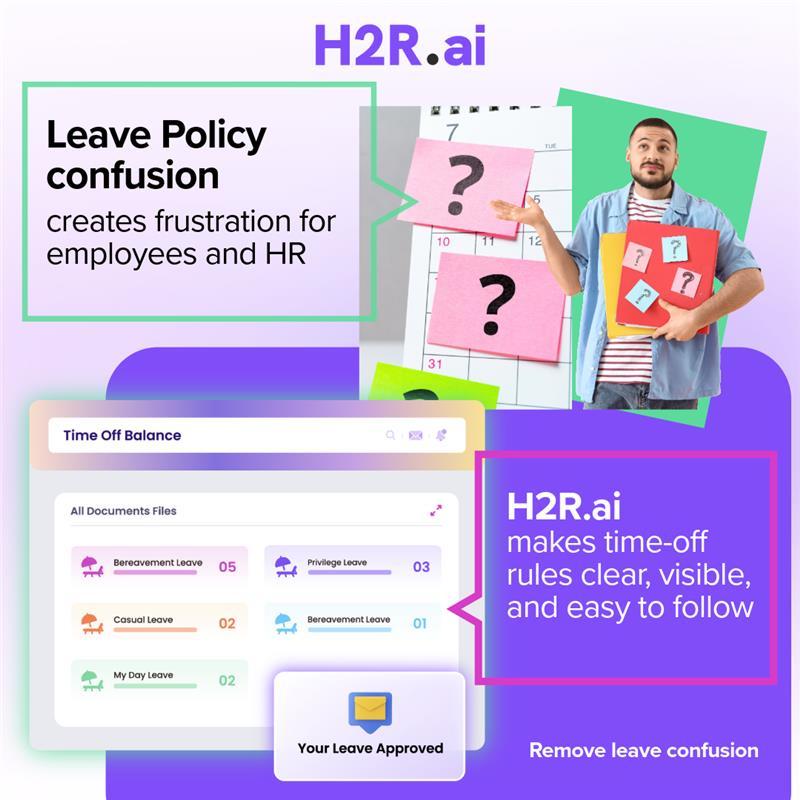
Does your organization struggle to manage employee time off? Are you still managing your leave manually? How hard is it to track the lead manually? Yet have you sent the mail for leave? Have you still calculated your leave manually? If so, commence your journey with H2R.ai PTO management software. How H2R.ai pto tracking software help for your...
Buy Telegram Accounts ➤ WhatsApp:+1 (312) 451-5765➤ Telegram: @pvaprozone If you’re looking to enhance your online presence and engage more effectively with your audience, buying Telegram accounts from pvaprozone.com is a strategic move you won’t want to overlook. By choosing to buy Telegram accounts, you gain access to authentic profiles that can help bolster your marketing...